Start here / Guide

How to emote and change Terminal Pose in The Outlast Trials

The short answer

Hold Ping / Quick Comms to select and send a message. For the Sleep Room Terminal animation, select an unlocked pose under Behaviour → Terminal Pose.

The 2026 footage demonstrates PC Quick Comms and Terminal Pose. Controller defaults come from older control guides; use your current mapped input.

Use the communication wheel

For a quick greeting, thanks or warning during a Trial, hold the Ping / Quick Comms input, choose a message on the wheel and release it. A short press pings instead of opening the wheel.

Input layout Open the wheel Choose and send
Mouse and keyboard Hold the middle mouse button Move the pointer over a message, then release
Controller default reported in the control guides Hold D-pad Up Select with the stick, then release

The 2026 PC tutorial shows the wheel with choices including Thanks, Hello, Help, Wait, Regroup and Acknowledge. These are built-in communication choices; you do not need to purchase or equip a cosmetic to use that wheel.
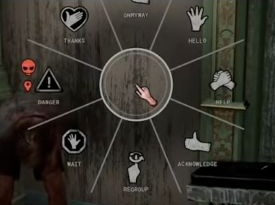
In-game communication wheel with Thanks, Hello, Help, Wait, Regroup and Acknowledge choices
Hold Ping / Quick Comms to open the wheel. Select a message and release the input.
Open image ↗
In-game communication wheel with Thanks, Hello, Help, Wait, Regroup and Acknowledge choices
Hold Ping / Quick Comms to open the wheel. Select a message and release the input.

If nothing opens, hold the input instead of tapping it. If your controller preset or custom bindings differ, look for Ping / Quick Comms in the controls and use that assigned input. The controller default above is documented in older control guides; the checked 2026 footage demonstrates the PC wheel.

Change your Terminal Pose

If you mean the animation your Reagent displays on the Sleep Room Terminal, use Behaviour → Terminal Pose and select an unlocked pose. Return to the Terminal to see that animation on your Reagent.
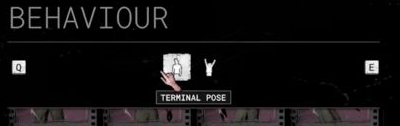
Behaviour customization menu with the Terminal Pose tab selected
For the Sleep Room Terminal animation, open Behaviour and select Terminal Pose.
Open image ↗
Behaviour customization menu with the Terminal Pose tab selected
For the Sleep Room Terminal animation, open Behaviour and select Terminal Pose.

The default pose is available from the start. Additional poses come from Catalogs or specified tasks; inspect the selected pose’s unlock requirement before spending currency. The 2026 tutorial shows the Behaviour menu, selects a Terminal Pose and then displays it on the character.

Terminal Poses belong to the Terminal display. They are separate from the Quick Comms wheel used to communicate inside Trials. A pointing animation associated with a ping is also not evidence of an equip-anywhere cosmetic emote system.

References

Search